Permalinks (UpToDate Connect)
Background
What is Permalinks?
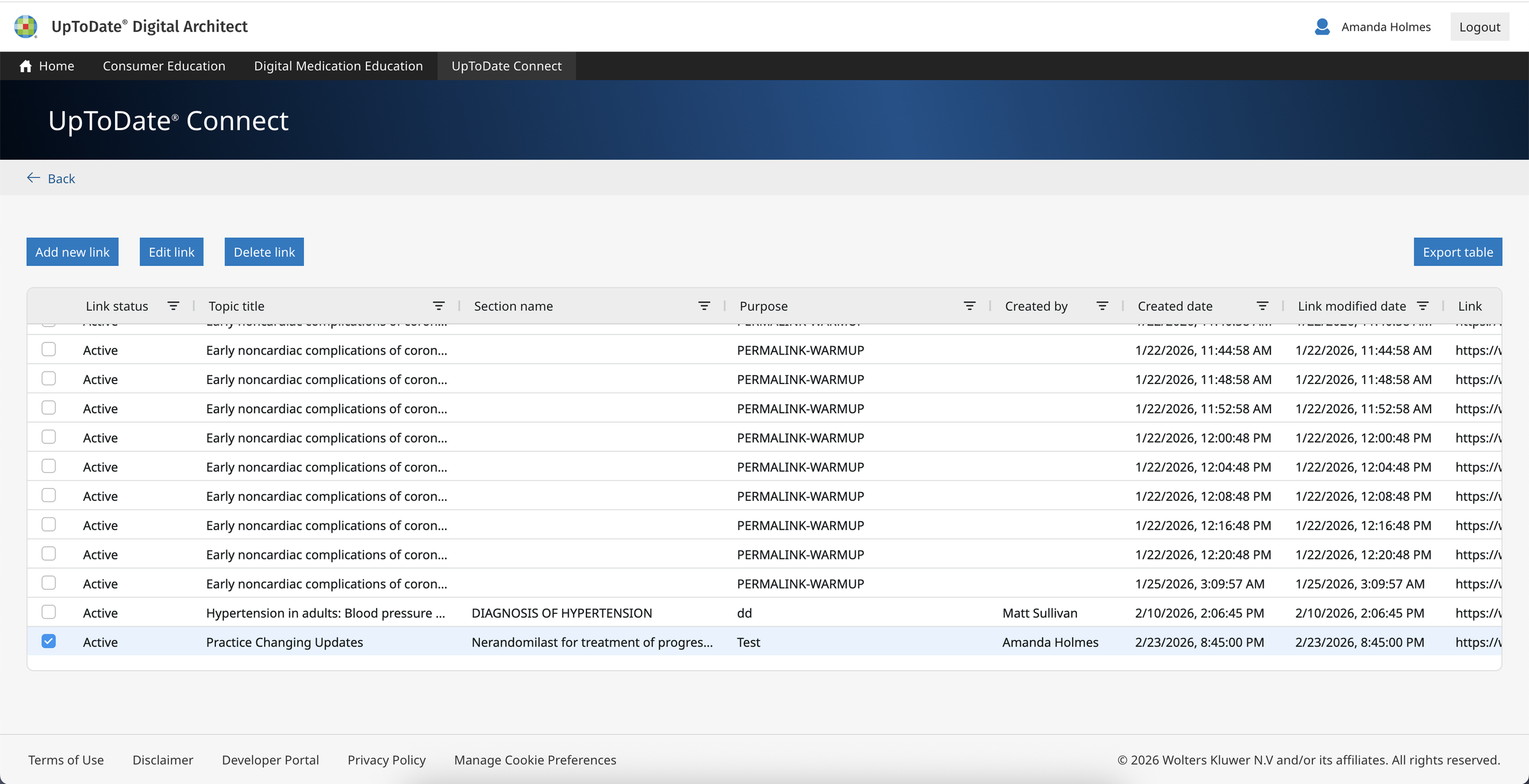
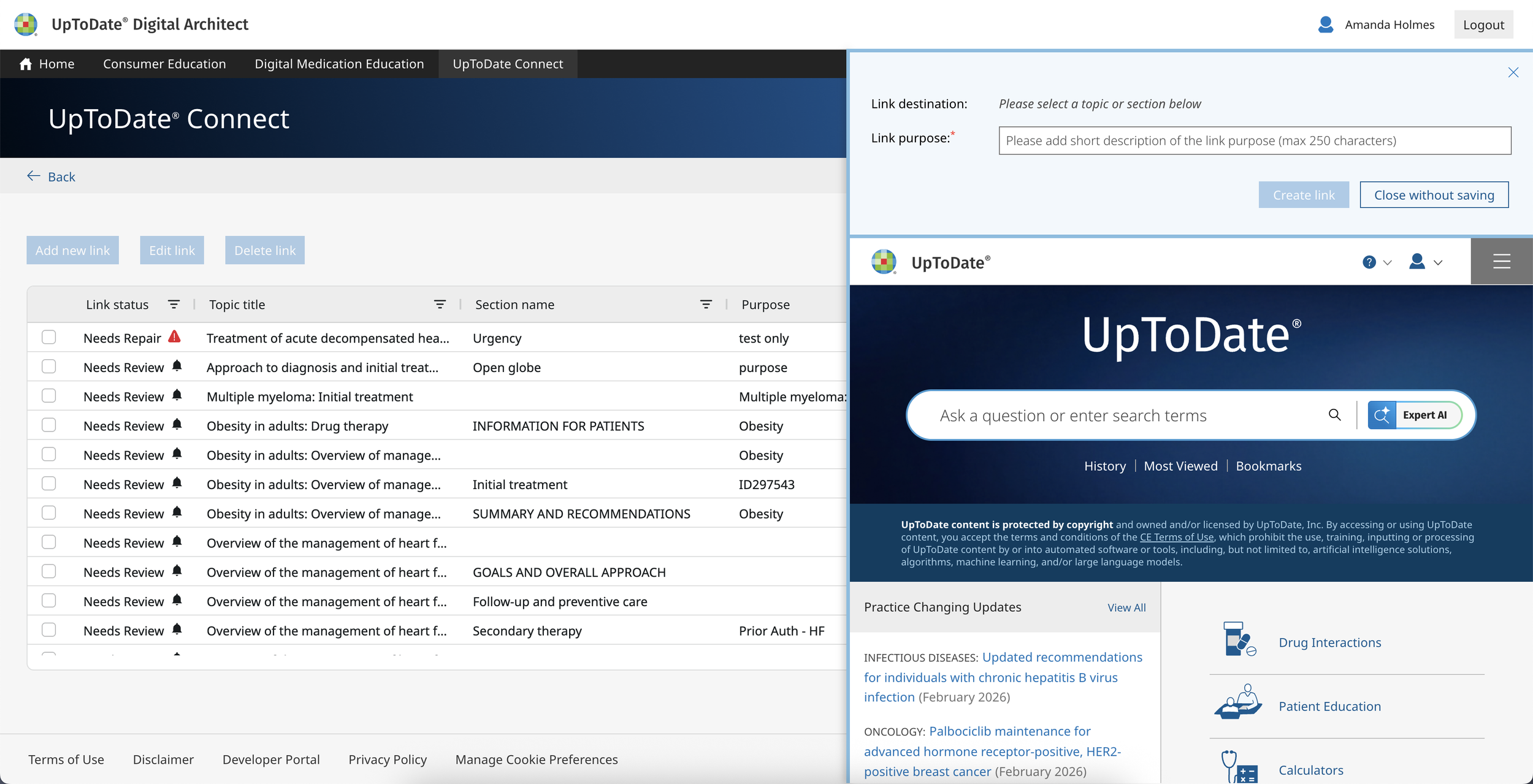
Permalinks, or UpToDate Connect, is a way for users of a partner site to create and manage direct links to UpToDate content. Links could be used to save relevant content for later use, or an easy way to share content with colleages. Previously, users of this partner site did not have a direct way to access and manage UpToDate content within the same platform.
Project Goal:
Create a simple and intuitive link manager, allowing users to browse, save, share, and manage a database of UpToDate links.
My Role: Lead Designer. I collaborated with stakeholders, our visual designer, and engineers.
Challenge
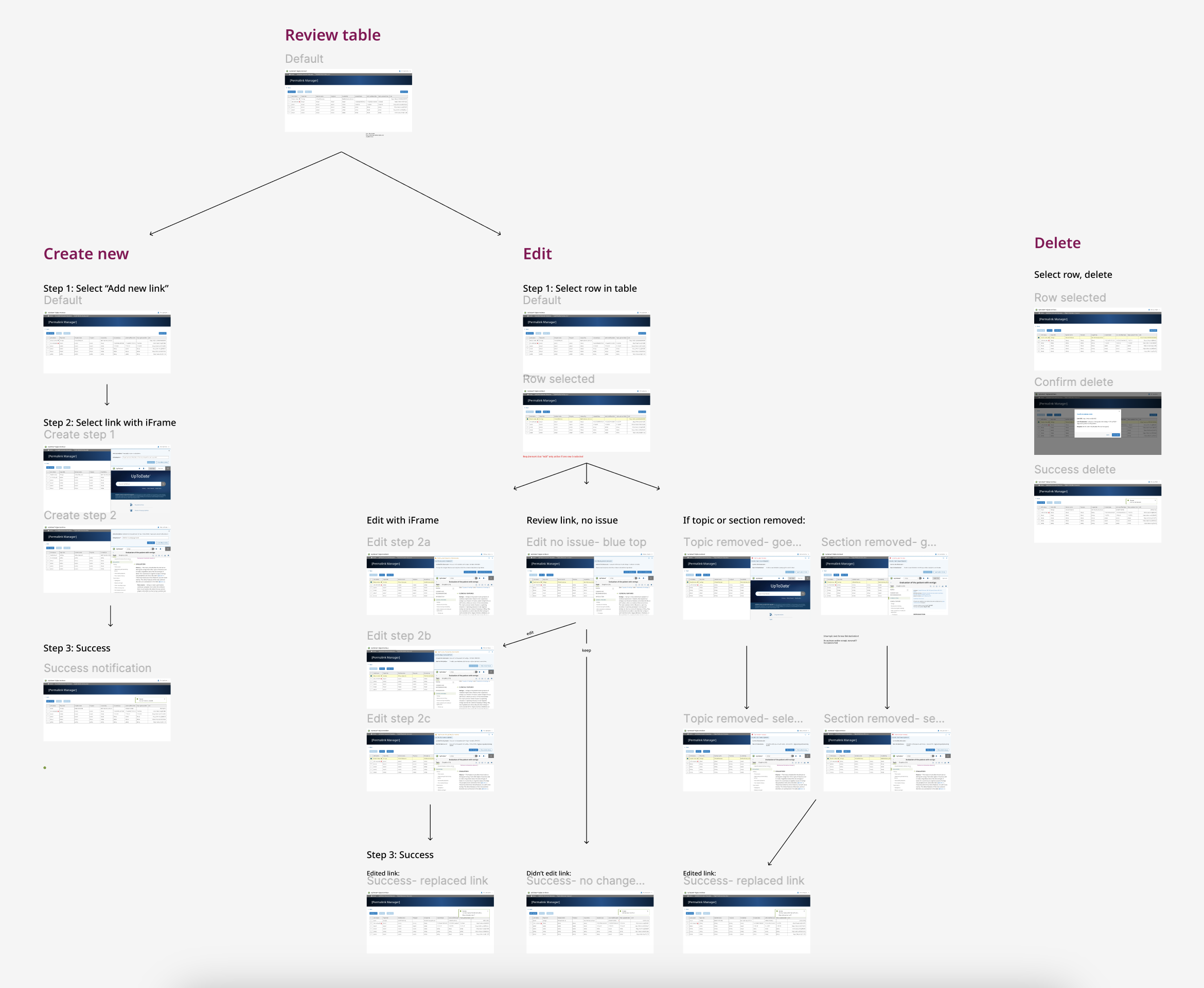
We started by designing the “edit” workflow, where users could review and/or update a previously saved link.
Our challenge was to create one simplified interface, which included multiple actions. This was also a new feature and therefore a new concept for users, so it had to be learnable and intuitive.
We debated two possible workflows. Both options used an iFrame where users could browse and select sections from UpToDate, and an action panel on top.
Exploration
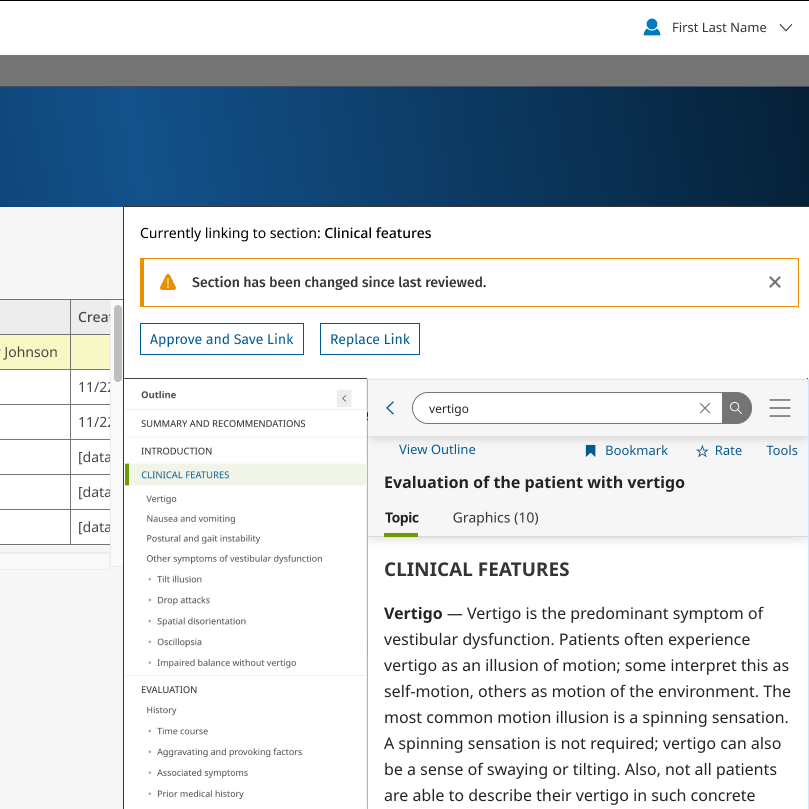
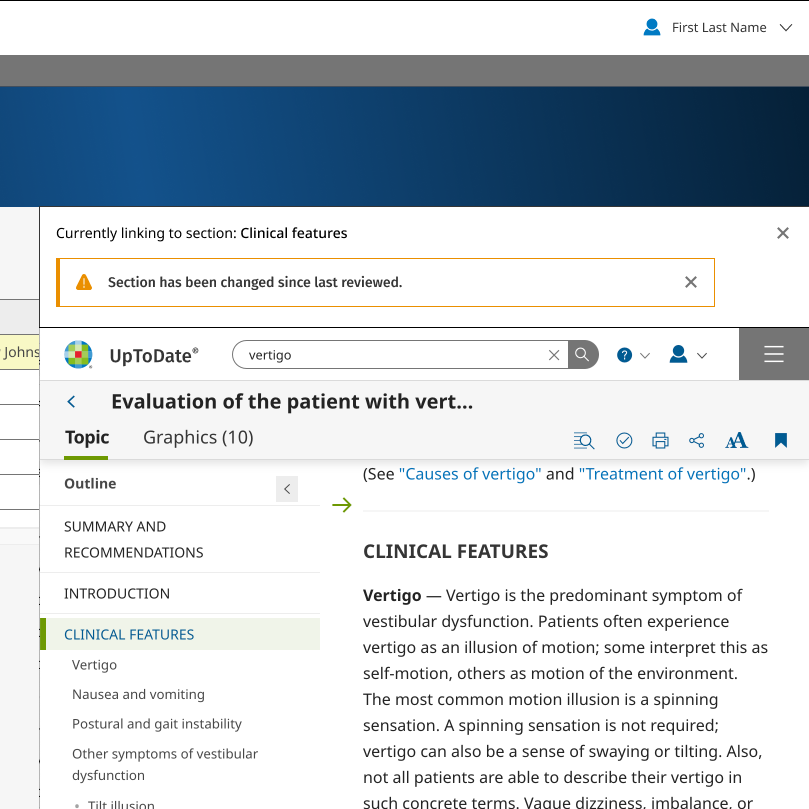
Option 1 (review, then edit):
Open link (from link manager)
User chooses to “Approve and Save Link”, or “Replace Link”
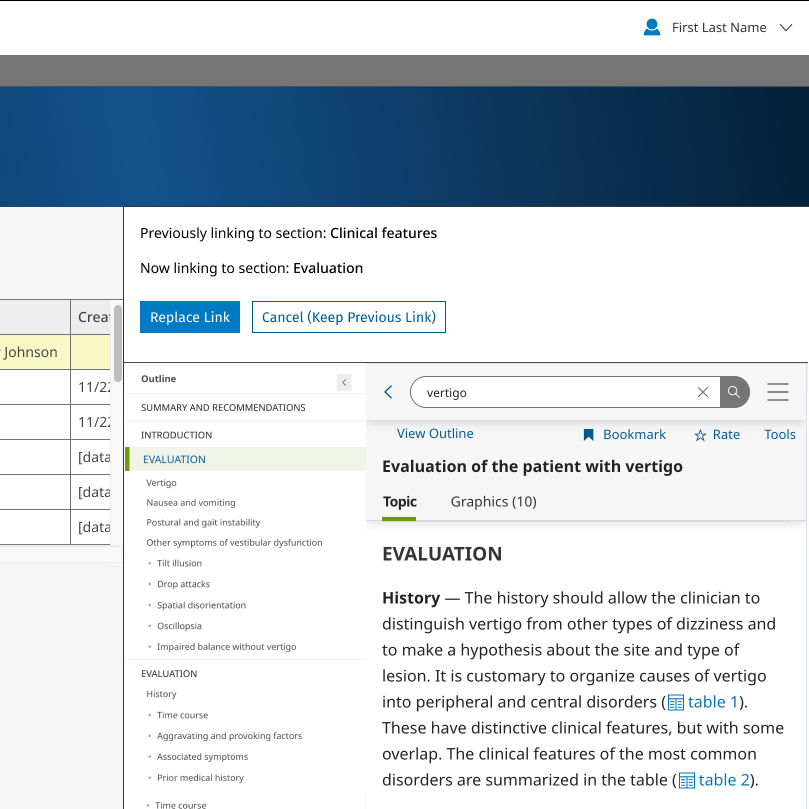
If they choose replace > they are brought to the edit workflow (similar to option 2). They can choose to “Replace Link”, or “Cancel (Keep Previous Link)”
Benefit: Could reduce cognitive load, by guiding users through their decision step by step
Drawback: More tedious (more clicks), especially for returning users who understand the concept, and may have multiple links to edit quickly
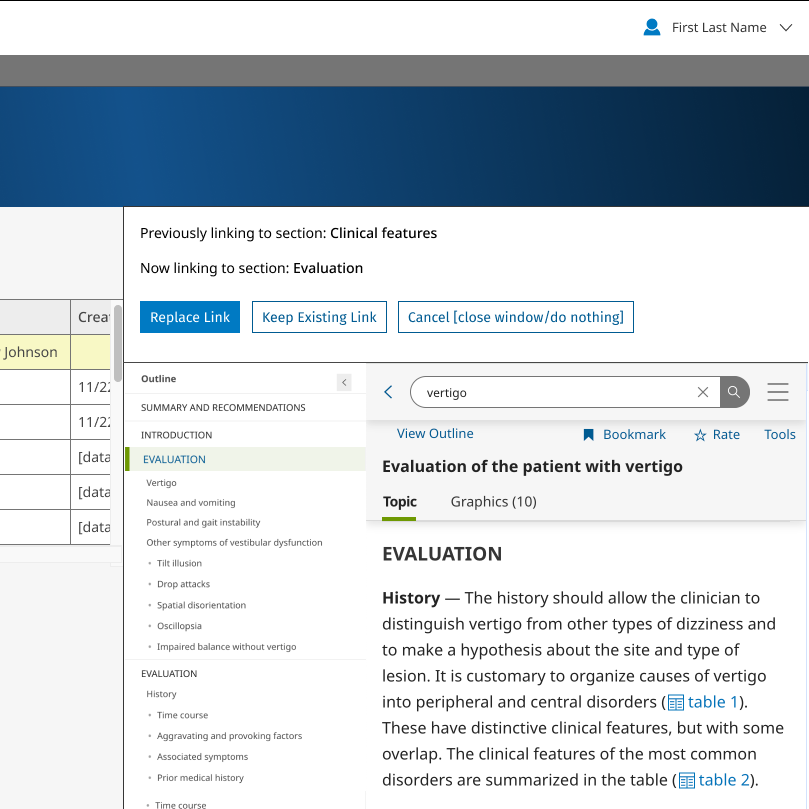
Option 2 (review and edit):
Open link (from link manager)
Select a new link using the iFrame
If they click on a different link (e.g., a different section in the outline), they are given options to “Replace Link”, “Keep Existing Link”, or “Cancel”
Benefit: Simple and efficient, more of a one-step process
Concern: May not be intuitive to new users
Decision
Decision: Option 2 (modified)
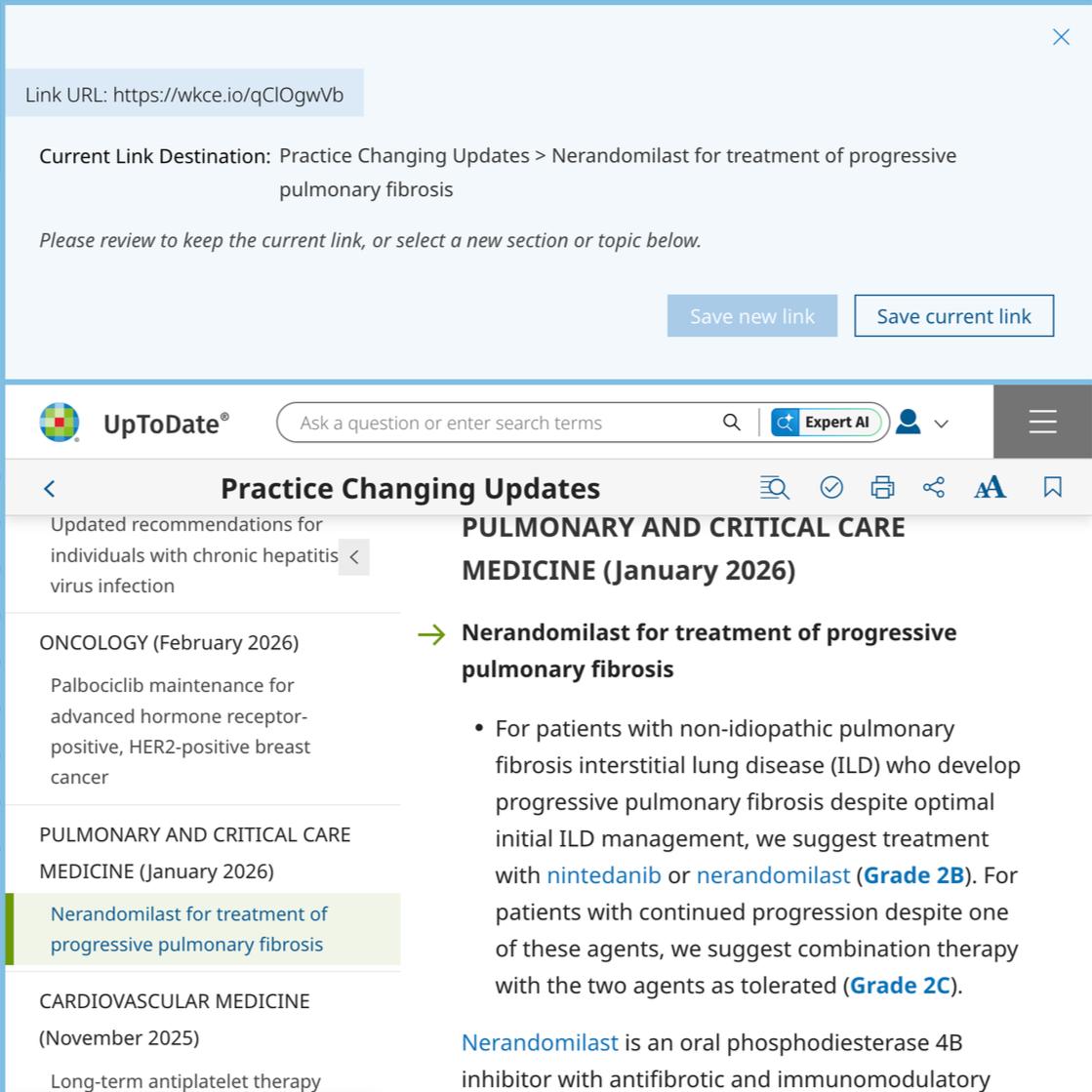
After much discussion and design iteration, we landed on Option 2, but with some key design changes.
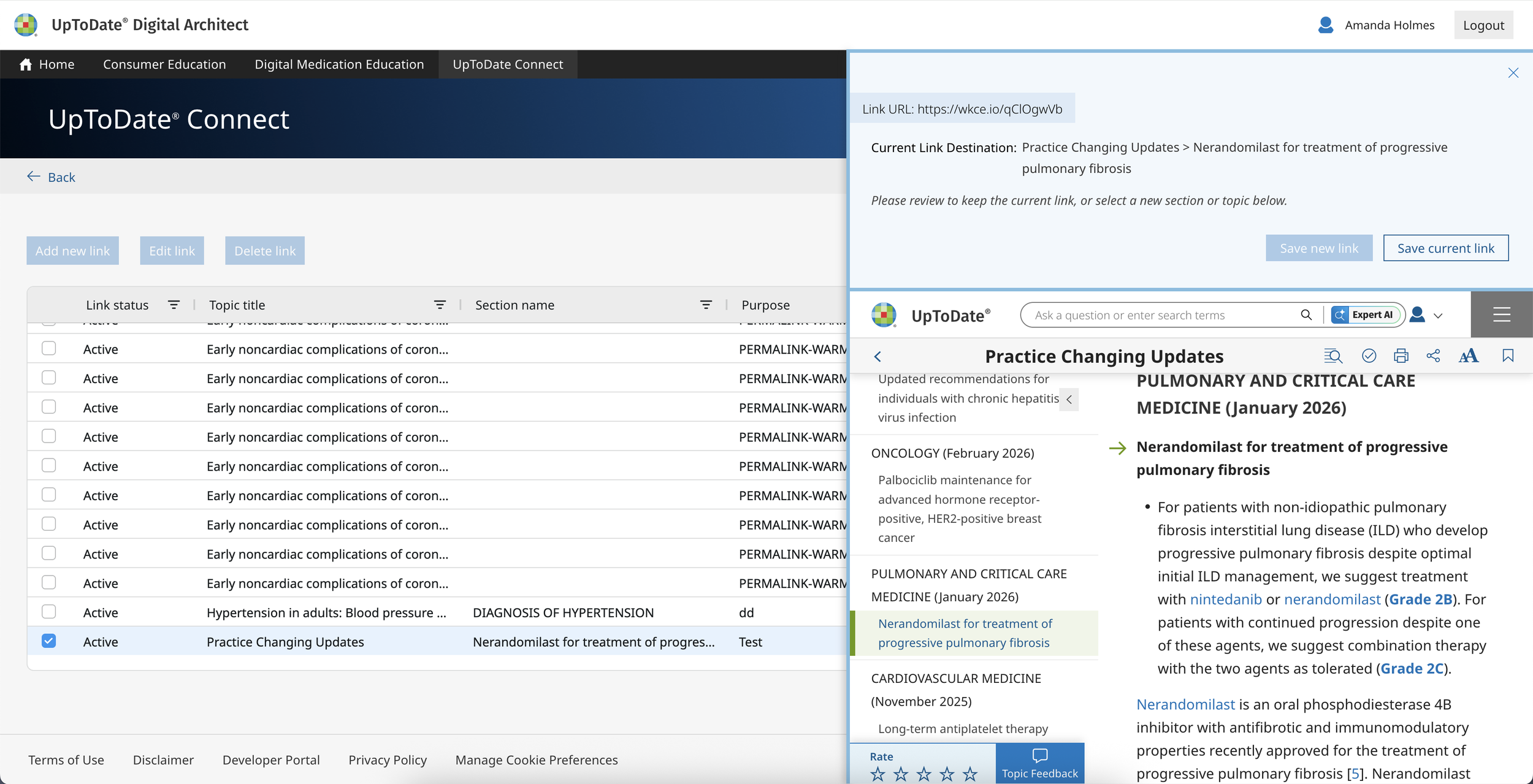
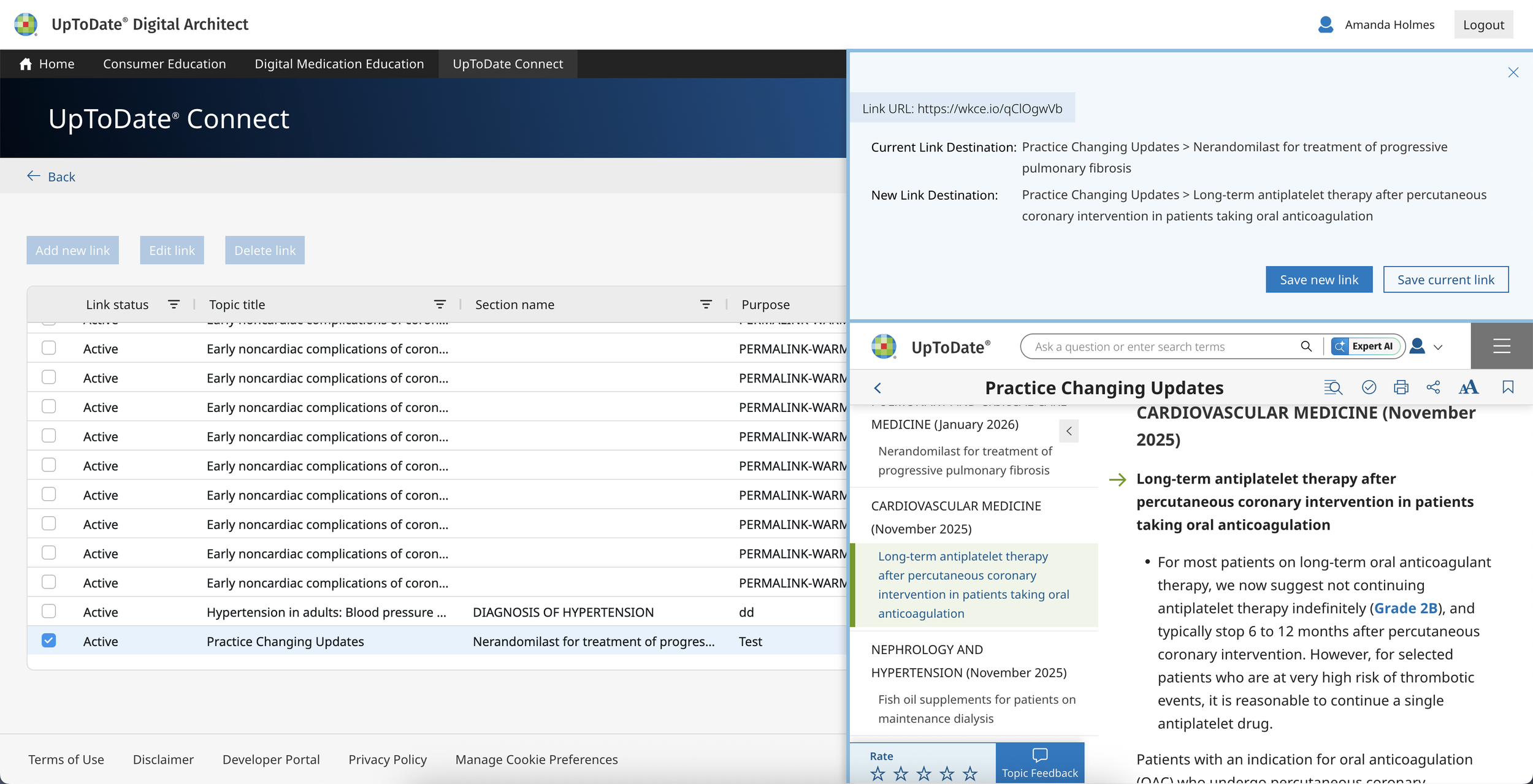
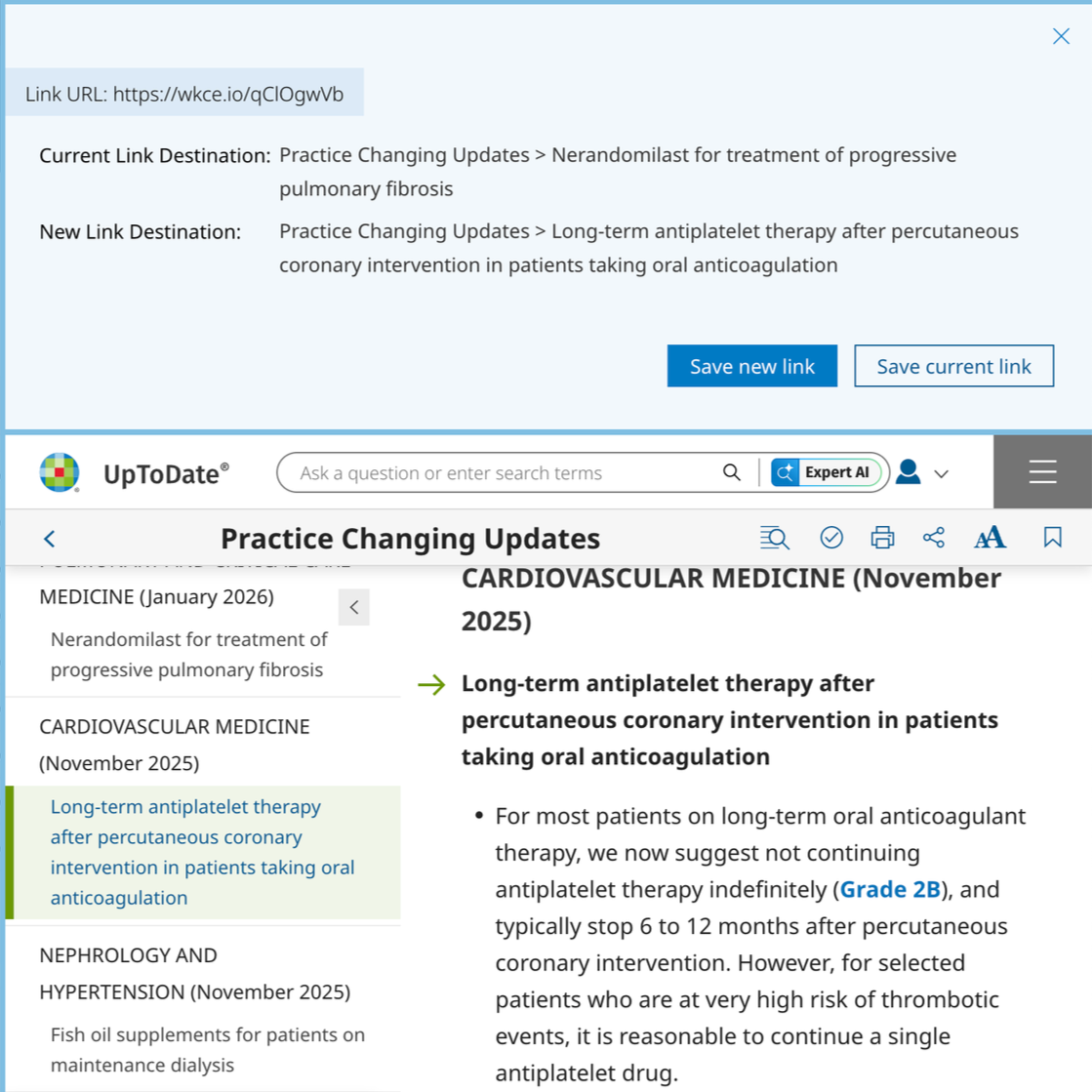
Users are shown the current link destination, and a brief instruction on how to select a new link (if desired). Once they have selected a new link, they are shown the previous and new link destinations.
All the information is shown, which clarifies the process for new users, but it is concise enough to not slow down returning users.
Buttons are now consistent across both steps, but disabled as needed. Cancel button was removed, as we felt the “X” was sufficient and well understood.
Simplifying the actions (buttons) keeps the panel much cleaner, and options are clear to users.
Having one primary action helps with scannability and quick decision making.
Outcome
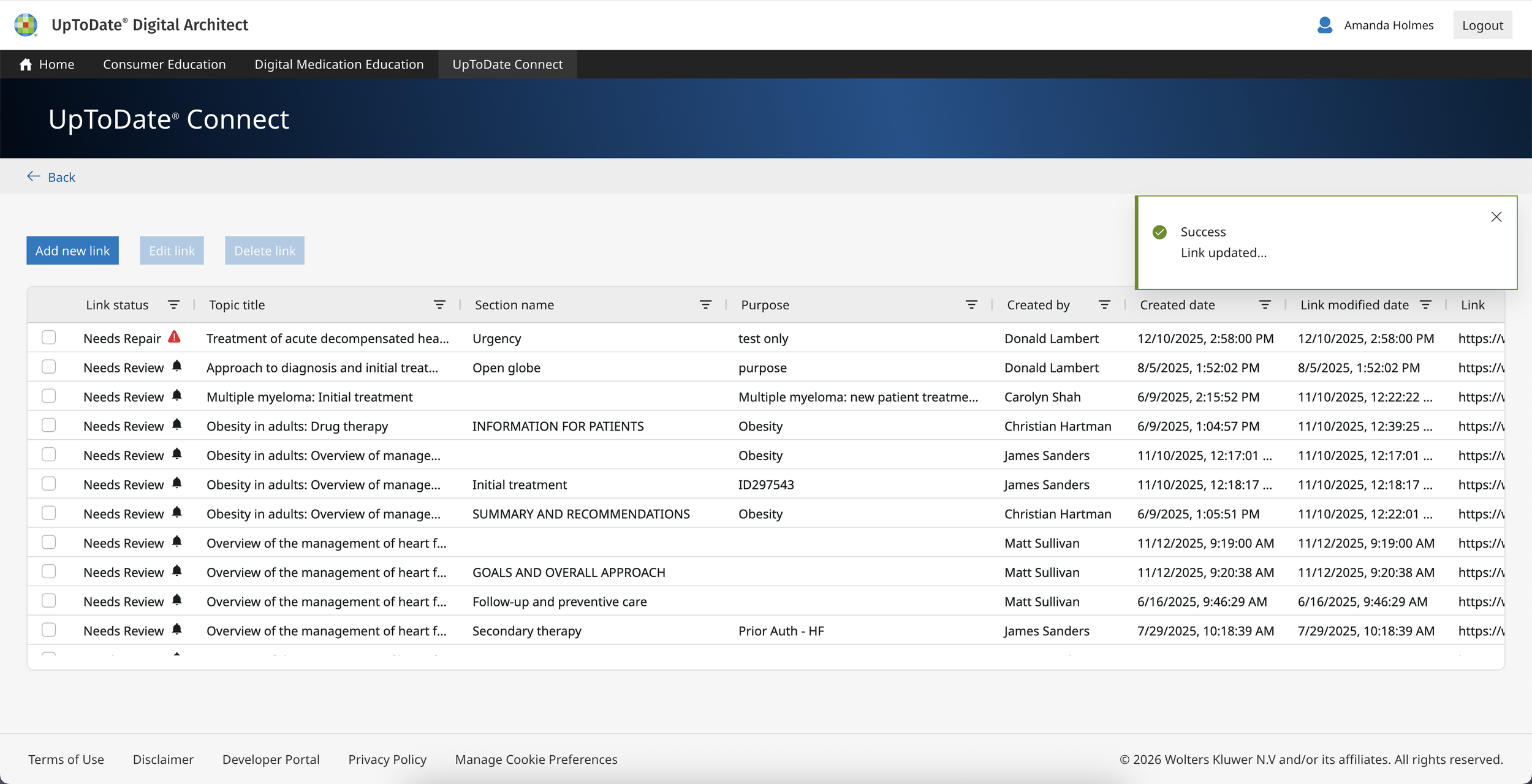
After finalizing the Edit workflow, we expanded the experience to include the create workflow, the link management page, and other supporting pages.
The feature launched successfully, and we received positive feedback from key customers. Users were able to add and edit their links quickly, efficiently, and with no confusion.
The success of this portal encouraged the business to expand it further, creating a fully integrated experience with UpToDate.